Skip to main content.

Preferences

There are various preferences and settings which may be changed to suit your liking by clicking the "Preferences" button on the main window or choosing "Preferences..." from the ClamXav menu (beside the Apple menu).

What follows is a brief description of each of the options and what they do:

^ TOP

General Preferences

"Log scan results to file" and "Log update results to file"
Scan and update results are logged to /Users/<your_home>/Library/Logs/clamXav_scan.log and /usr/local/clamXav/share/clamav/freshclam.log respectivlely. Any infected files found in your chosen scan location will be reported in the scan log. The date, time and success (or otherwise) of updates will be stored in the update log.

"Quarantine infected files to"
Allows you to define a folder into which infected files will be moved automatically when they're found. Please be careful with this option - if a message in your email mailbox is infected, this option has the potential to move your entire mailbox (with the exception of Apple Mail in OS X 10.4) away from where it should be, rendering your email missing and inoperable! In most cases, it can be moved back to where it should be, but on the whole it's not an easy task and I regret that I am unable to explain how to do this. If you find yourself in this situation, my web forums may provide some useful advice.

"Scan email files".
Most email clients will store email messages and mailboxes in a format called "mbox". What this option does is allow ClamXav to scan the actual contents of individual email messages for embedded virus attachments. This option frequently flags up emails which other email scanners may have missed.

Turning this option on (with "Quarantine" off) lets you see if a virus exists, leaving you to trawl through your mailbox and delete the offending message yourself. See the "sticky" thread in my forums to see how to pinpoint it. If you use Apple's Mail program (this may affect others too), you must quit every time you delete something from a mailbox otherwise the change will not actually take effect. Similarly, if you use Eudora you must compact the mailbox after deleting an infected message.

For the reasons explained previously, this option may not be used in conjunction with the "Quarantine" option. I should also warn, however, that even without this option set, ClamAV will still scan through the file's textual content, looking for HTML phishing attacks.

An AppleScript is available which can be used in conjunction with Apple's Mail program to scan each message as it arrives in your mailbox.

"Do not scan if file name contains"
Allows you to specify a text pattern. While scanning, any file whose name contains that text pattern will not be scanned. As of ClamAV engine 0.86.1, it is now feasible to use complex regular expressions in this field, but teaching RE's is an enormous task and FAR beyond the scope of this documentation!

Conversely, if you specify a text pattern in the "Only scan if filename contains" field, then only those files whose name contains that text pattern will be scanned. As before, RE's can be used.

The two options above can be used in conjunction for some particularly stringent scan requirements. Bear in mind though, set them both to be the same text pattern and nothing will get scanned!

"Monitor scan with progress bar" will display a progress bar during the scan to show how close it is to completion. In order for this to work, ClamXav must first determine how many files are due to be scanned. This can take a few minutes for a large folder/selection of files before the actual scanning even starts.

"Alert on virus detection" will play your computer's alert sound and, if ClamXav is not the front-most application, its icon will bounce in the Dock.

^ TOP

Internet Preferences

"Connection requires proxy"
Allows you to specify a proxy server and port number. Should your network require one in order to access the internet, you'll not be able to perform the virus definition updates without first specifying the necessary settings. In a future version, I hope to obtain these settings directly from the System but this is not yet possible (that's why the option is there but greyed out). If you do not know these settings, you will need to contact your system or network administrator.

The "Check for new version of ClamXav/ClamAV engine" settings will check for new updates each time you run ClamXav. Similarly, virus definitions can be updated automatically when you launch ClamXav.

^ TOP

Schedule Preferences

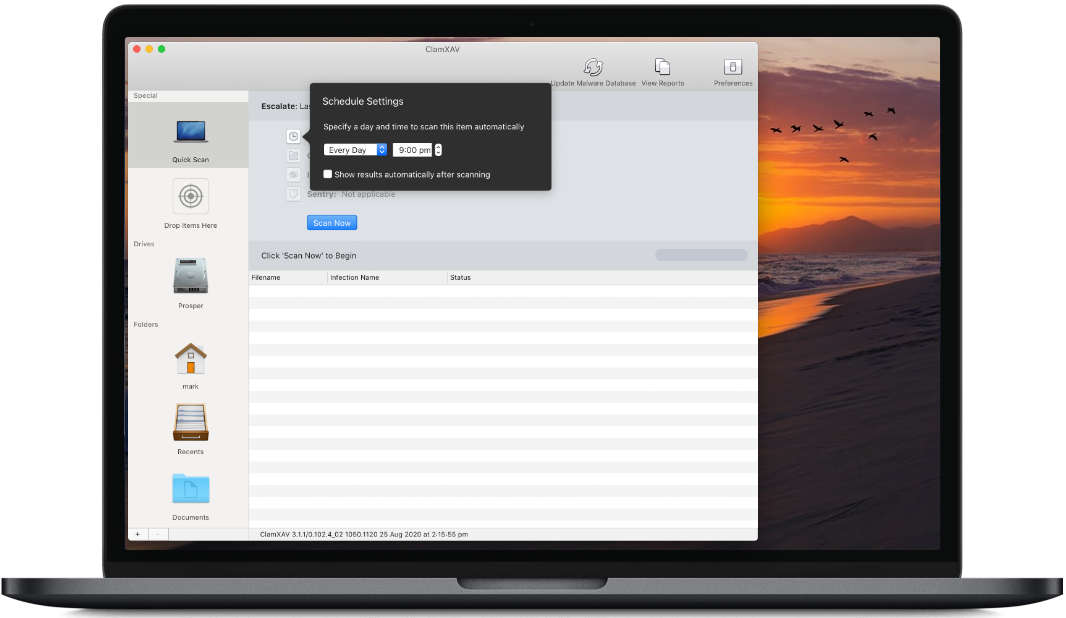
You can set a specific time (on one or more days of the week) to perform a scan and/or virus definition update.

The option for "what to scan" is set from the main window, so do this BEFORE you set and save the schedule preferences.

All other settings are taken from the LAST time preferences were saved - ie if you go into preferences, change various settings and set a schedule before clicking OK, you'll be using the old include/exclude settings (etc), not what you just changed them to. In order to use your new settings, you must first click OK and then re-open the Preferences panel.

To make changes to the scheduled scanning/updating, you must first authenticate. This is also true of re-loading the schedule preferences. Do this by clicking the padlock and entering your admin password. Note, the user name is taken as the currently logged in user, so you must be logged in as an administrator for this to work.

Drag the sliders to the hour and quarter-hour of your preference, set which day(s) you wish the scan/update to take place and click "Save schedule settings".

Other important things to note as regards scheduling: Logging is always ON, quarantine is always OFF.

^ TOP

Folder Sentry Preferences

ClamXav's helper program, ClamXav Sentry, has the ability to watch specified folders for newly added items and scan them as they arrive. You will be alerted to any viruses contained therein by an error message on your screen.

To tell ClamXav Sentry what to watch, drag folders into the list of items to watch. Folders may be removed from the list by first selecting its name and then pressing the "Remove Selection" button. Alternatively, the list may be emptied by pressing the "Remove All" button.

The Scan Inserted Disks checkbox will enable ClamXav Sentry to scan any disks which are inserted. A word of warning here: the larger the disk, the longer it will take to scan.

The "Quarantine Infected Files" checkbox will move any infected files into your specified quarantine folder. This option is not available if the quarantine option has been disabled in the General preferences section.

The "Delete Infected Files" checkbox will move any infected files to the trash silently. You will not be warned about the infected file, which will remain in the trash until you empty it.

The last checkbox in this preference panel launches ClamXav Sentry when you log in or startup your computer. I suggest you choose this option as it means your guard is up from the second you turn your computer on without having to think about it. Not only that, but the only other way to launch it is via ClamXav.

Click the "Save Settings & Launch ClamXav Sentry" button. If not already running, it will launch and immediately start watching your defined folders for new additions. If it was already running, then you also need to choose Restart Watching from the ClamXav Sentry menu before it will be aware of any changes you may have made.

Please consult the ClamXav Sentry documentation for more information on how to use it.